How to find the hex code of a color in a photo on iPhone

Open the photo in a color picker app, tap the pixel you want, and read the hex code off the result. On stock iOS the tool is buried in Markup: screenshot the image, tap the color circle, open the Sliders tab and use the eyedropper. That gives you hex only. A dedicated picker gives you the hex plus the other three formats in the same tap.
Find a hex code in a photo on iPhone
- Open the image. In Swatchr, tap Photo and choose the picture you want to sample.
- Position the crosshair. Drag the crosshair to the exact pixel. Pinch to zoom first if the area is small or noisy.
- Copy the code. Tap the hex row in the readout card. The value goes straight to the clipboard.
The route Apple gives you, and where it runs out
iOS has had an eyedropper since iOS 14, but it lives inside Markup rather than in Photos. You take a screenshot, tap the preview, tap the color circle at the bottom, switch to the Sliders tab and tap the dropper. Drag the loupe around and the hex field updates.
It works. The problem is what happens next. You get one value, in one format, and you have to write it down before you leave Markup, because nothing is saved. If your day involves more than the occasional color, the friction adds up fast.
Getting the hex code and the other formats at once
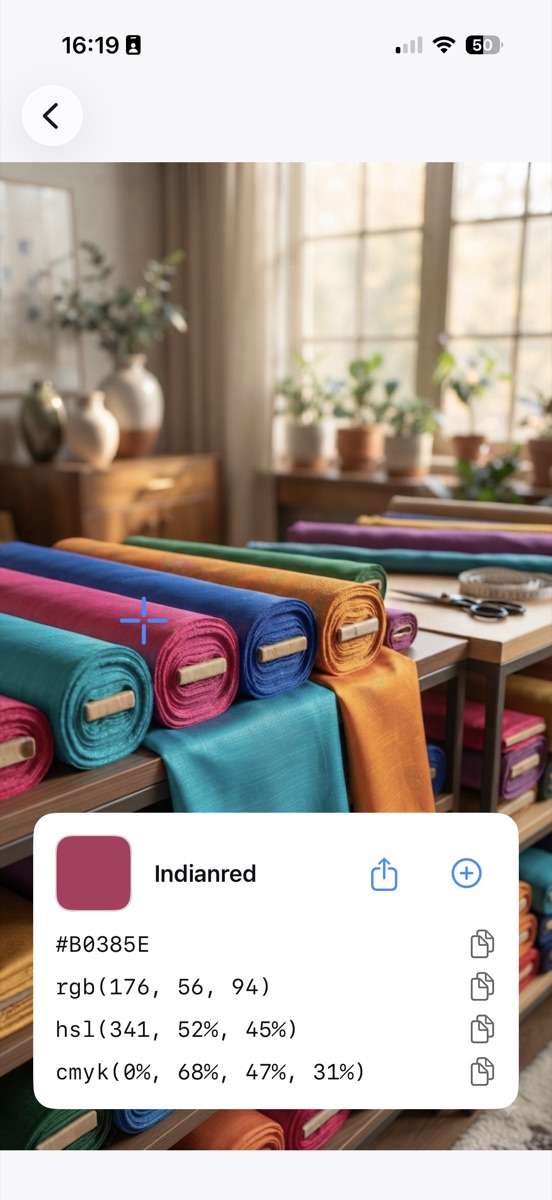
Swatchr shows all four notations on the same card: hex, RGB, HSL and CMYK. Tapping any row copies that row. If you are writing CSS you take the hex, if you are in Figma you take the RGB, and you never open a converter in between.
The pick is also named. #B0385E comes back as Indianred, which matters more than it sounds when you are trying to describe a color to a client over the phone.
Getting an accurate reading from a photograph
A photograph is not a color swatch. JPEG compression smears color information across blocks of pixels, so two points a few pixels apart in what looks like flat color can differ by ten or fifteen in each channel.
Zoom in before you sample, and pick from the middle of a flat region rather than near an edge. Avoid highlights and shadow: a wall photographed in direct sun reads several shades lighter than the paint actually is. If the photo was taken under a warm bulb, expect everything to skew yellow, and sample a known white in the frame to see how far off it is.
Common questions
Can I get a hex code from a screenshot?
Yes. A screenshot is an image like any other, and screenshots avoid the camera and lighting problems entirely, so the value you read is the value that was on screen.
Why does the same color give a different hex in two apps?
Usually color space. An image tagged Display P3 sampled as sRGB comes out different, and some apps average a small area rather than reading a single pixel.
Try it yourself
Swatchr reads the color of anything your camera can see, or any point in a photo, and hands you the hex, RGB, HSL and CMYK.
Download on the App Store